We available for hire! — Need help with a web or mobile project?
From yensdesign we develop technology projects based on web apps, mobile apps, consulting and databases. We are young and hard workers, passionate about innovation and focused in new technologies.If you want to ask for a budget, we hare available for hire!.
Create a smooth tabbed menu in jQuery
 December 9th, 2008
Hi guys! As we have said many times, websites are evolving to rich online applications and tabbed menus can be very power and useful to show content to our visitors.
In this case, we are going to learn how to create a smooth tabbed menu with our lovely jQuery library. With simple and clean layout we can have a great tabbed menu for our websites.
As always, here you have the live demo before starting the tutorial 
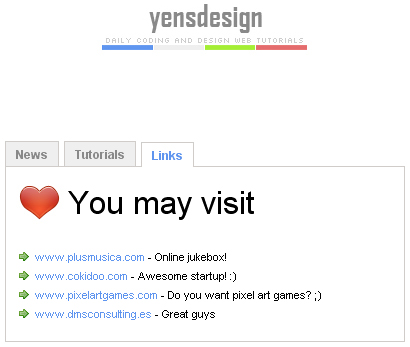
Tested in: Firefox, Internet Explorer 6 & 7, Opera, Safari & Chrome.
Interesting…? Just continue reading!
Why this and not the UI Library?
Unlike other tutorials that make use of jQuery UI Library, we don’t want to spend our resources in loading a heavy library that has a lot of functions but it isn’t neccesary in some cases (like ours).
We are going to create our custom tabbed menu instead of use the jQuery UI Library that has a lot of code that we don’t need, so just pay attention and you will see it is easy, as always 
Step 1: A little HTML layout
One more time guys, we begin our tutorial setting up the (x)HTML layout. In this tutorial we will have 2 main divisions:
- Menu
- Content divisions (with different classes)
These 2 divisions will be contained in a general container called container.
The HTML code is as follows:
[code language="html"] [/code]
Latest News
Boobles: First theme on Themeforest released!
Latest Tutorials
You may visit
There is nothing to comment over here… let’s jump into the CSS part.
Step 2: Adding the style with CSS
There is a little trick over here that must be remarked: We are going to create 3 different divisions with 2 classes, a common class called: content and a single class for each section. So we will have these divisions:
- content news
- content tutorials
- content links
We are reusing the class called “content” and adding a second class (news, tutorials or links) to the same content division to change some little details in each section. Doing this you can save a lot of CSS code in your layouts.
There is the CSS code:
[code language="css"]
@CHARSET "UTF-8";
/******* GENERAL RESET *******/
html, body, div, span, applet, object, iframe, h1, h2, h3, h4, h5, h6, p, blockquote, pre, a, abbr, acronym, address, big, cite, code, del, dfn, em,
font, img, ins, kbd, q, s, samp, small, strike, strong, sub, sup, tt, var, dl, dt, dd, ol, ul, li, fieldset, form, label, legend, table, caption, tbody,
 tfoot, thead, tr, th, td {
border:0pt none;
font-family:inherit;
font-size: 100%;
font-style:inherit;
font-weight:inherit;
margin:0pt;
padding:0pt;
vertical-align:baseline;
}
body{
	background: #fff;
	line-height:14px;
	font-size: 12px;
	font-family: Arial,  Verdana, Helvetica, sans-serif;
	margin:0pt;
	cursor:default;
	overflow: hidden;
}
html,body{
	height:100%;
	text-align: center;
}
.clear{
	clear: both;
	height: 0;
	visibility: hidden;
	display: block;
}
a{
	text-decoration: none;
}
/******* GENERAL RESET *******/
/******* LOGO *******/
#logo{
	margin-top: 1em;
	display: block;
}
/******* /LOGO  *******/
/******* MENU *******/
#container{
	margin: 7em auto;
	width: 400px;
}
#container ul{
	list-style: none;
	list-style-position: outside;
}
#container ul.menu li{
	float: left;
	margin-right: 5px;
	margin-bottom: -1px;
}
#container ul.menu li{
	font-weight: 700;
	display: block;
	padding: 5px 10px 5px 10px;
	background: #efefef;
	margin-bottom: -1px;
	border: 1px solid #d0ccc9;
	border-width: 1px 1px 1px 1px;
	position: relative;
	color: #898989;
	cursor: pointer;
}
#container ul.menu li.active{
	background: #fff;
	top: 1px;
	border-bottom: 0;
	color: #5f95ef;
}
/******* /MENU *******/
/******* CONTENT *******/
.content{
	margin: 0pt auto;
	background: #efefef;
	background: #fff;
	border: 1px solid #d0ccc9;
	text-align: left;
	padding: 10px;
	padding-bottom: 20px;
	font-size: 11px;
}
.content h1{
	line-height: 1em;
	vertical-align: middle;
	height: 48px;
	padding: 10px 10px 10px 52px;
	font-size: 32px;
}
/******* /CONTENT *******/
/******* NEWS *******/
.content.news h1{
	background: transparent url(images/news.jpg) no-repeat scroll left top;
}
.content.news{
	display: block;
}
/******* /NEWS *******/
/******* TUTORIALS *******/
.content.tutorials h1{
	background: transparent url(images/tuts.jpg) no-repeat scroll left top;
}
.content.tutorials{
	display: none;
}
/******* /TUTORIALS *******/
/******* LINKS *******/
.content.links h1{
	background: transparent url(images/links.jpg) no-repeat scroll left top;
}
.content.links{
	display: none;
}
.content.links a{
	color: #5f95ef;
}
/******* /LINKS *******/
[/code]
As you can see, we are going to show news section and hide the rest by default, then with jQuery we will be able to show/hide using events.
Step 3: Adding jQuery magic to our tabbed menu
First of all take a look at the events.js code:
[code language="javascript"]
/***************************/
//@Author: Adrian "yEnS" Mato Gondelle & Ivan Guardado Castro
//@website: www.yensdesign.com
//@email: [email protected]
//@license: Feel free to use it, but keep this credits please!
/***************************/

$(document).ready(function(){
	$(".menu > li").click(function(e){
		switch(e.target.id){
			case "news":
				//change status & style menu
				$("#news").addClass("active");
				$("#tutorials").removeClass("active");
				$("#links").removeClass("active");
				//display selected division, hide others
				$("div.news").fadeIn();
				$("div.tutorials").css("display", "none");
				$("div.links").css("display", "none");
			break;
			case "tutorials":
				//change status & style menu
				$("#news").removeClass("active");
				$("#tutorials").addClass("active");
				$("#links").removeClass("active");
				//display selected division, hide others
				$("div.tutorials").fadeIn();
				$("div.news").css("display", "none");
				$("div.links").css("display", "none");
			break;
			case "links":
				//change status & style menu
				$("#news").removeClass("active");
				$("#tutorials").removeClass("active");
				$("#links").addClass("active");
				//display selected division, hide others
				$("div.links").fadeIn();
				$("div.news").css("display", "none");
				$("div.tutorials").css("display", "none");
			break;
		}
		//alert(e.target.id);
		return false;
	});
});
[/code]
As you can see we are managing the click event of each li element from menu division. Using a switch sentence will allow us to show/hide and add/remove style for differente sections. Just that, no more guys.
Step 4: Trying our smooth tabbed menu!
And that’s all guys, as you can see it’s more difficult to think about the implementation of the idea than the code
That’s all guys, I hope you enjoy this tutorial as I did when I wrote it
You can try the tutorial online here to see how It is working and download here all sources.
One more thing guys! Thanks all who helped us to test plusmusica.com! If somebody wants to try it, just send us a comment over here!
See you on next tutorial!!
One more thing…
The certkiller offers you latest 642-892 questions and answers for guaranteed results. Check out the 642-642 tutorials, study guides, dumps and 640-863 practice test to ensure your success before hand.
 Coding, javascript, jquery, menu, smooth, tabbed, Tutorials, web
 Coding, Tutorials, Web Design
Enjoy this post?
Your vote will help us to grow this website and write more entries like this one :)


We available for hire! — Need help with a web or mobile project?
From yensdesign we develop technology projects based on web apps, mobile apps, consulting and databases. We are young and hard workers, passionate about innovation and focused in new technologies. We try to help you, sharing our knowledge acquired on worked projects, while helping the community and showing our capabilities.If you want to ask for a budget, we hare available for hire! Don't doubt in get in touch with us!.





[...] Adrian Gondelle on how to Create a smooth tabbed menu in jQuery [...]
Another great tut! I think, was not bad in next tut to tell about making the windows on jquery. Thanks and respect to authors
Sorry for my english.
@EtoYa thanks for posting! Do you mean a popup? We have published a tut about this over here: http://yensdesign.com/2008/09/how-to-create-a-stunning-and-smooth-popup-using-jquery/
@Adrián Mato Gondelle, not popup. I mean simply float window with min/max, resizing and drag options.
Ah right! I will see it. Thanks for giving us ideas
Hi, absolutely wonderful and simple, didn’t thought a moment to use it in my site, (BTW check it out to see the results ^.^) just made a little changes to work with dynamically created tabs and that’s all, thanks for this great tutorial
thats greats
Nice visually!! But turn Javascript off and the page is dead. Also, you have mode than one h1 tag in the page. Not very accessible.
You could load only one tab and make it functionnal without Javascript (i.e. navigation should be real links that really reference pages that load the other tabs). Then, with jQuery, when document ready, you make an ajax call and append the 2 other tabs (or prepend, or a mix, depending on the page that is being viewed). Then comes your script.
Thanks Antoine and good point!
Create a smooth tabbed menu in jQuery…
[...]In this case, we are going to learn how to create a smooth tabbed menu with our lovely jQuery library. With simple and clean layout we can have a great tabbed menu for our websites.[...]…
Neat. I would like it a lot better if it could gracefully fail if the user has turned off javascript, but neat nevertheless.
Nice tutorial and menu.. though the menu itself doesn’t seem quite so smooth, since it doesn’t degrade so smoothly and there is a lingering line underneath the tabs for a second after you change to it, but maybe that’s just me..
[...] Create a smooth tabbed menu in jQuery [...]
[...] Create a smooth tabbed menu in jQuery yensdesign – Tutorials, Web Design and Coding (tags: javascript jquery) [...]
[...] Create a smooth tabbed menu in jQuery | yensdesign – Tutorials, Web Design and Coding [...]
Hi Adrián, how are you?
Do you know if Google’s bot consider this tabbed menu a “black hat” pratice?
Because we are hiding content from user (but we give the option to unhide too).
Congratulations for the tutorial!
@Lucas Thanks for posting. I don’t think so
Looks very good, will try it on my next project. Just getting started with JQuery so I happy to learn new ideas from the ‘experts’.
@Nigel thanks for your comment! We just try to share our experience… but expert is so far hehe ^^
Good Job. You educate lots of people and your tutorials are fantastic. “Knowledge is Power and Sharing Makes it True”
@anver Thank you so much anver, comments like this help us to improve and continue our tutorials
Hi… a nice tut from you, as always…
A ling back I’ve made one similar to this.
But one thing I noticed in ur design same CSS selector ‘#container ul.menu li’ is used twice but with different styles. Was this done by mistake or with some reason?
And for the declarations in second ‘#container ul.menu li’, there is position set to relative (position: relative). Any way there are no children elements in the ‘li’ (except text), then why we need to position? But When I remove this style, the active menu link is getting underline and if positioned no bottom border.
I m a bit confused whether that declaration is over used or with a purpose. If the purpose is to remove the bottom border, how this is happening?
Kanta
@Kanta thanks for posting! There is a reason for the position:relative it allow us to apply the margin-top correctly to the active li element that is a little “higher” than others.
Can we use this for commerical use? Do we have to buy license to use this script?
@Hustin Yeah sure, use it for whatever you want, just keep the credits in the script ^_^
thanks for your reply:)
Thanks, very nice tut…
I was trying to add more links that will go over one page, but I don’t see scroll bar in IE and Google Chrome. Is there any way I can show scroll bar?
Thanks for the great script!.
I added more links to one tab which doesn’t fit in one page. But scroll bar does not exist.
How do I enable scroll bar?
beautiful article…thanks very much for your in-depth description. one note: you can really excise a ton of the .js and make that function (in tab.js) much more extensible this way:
$(document).ready(function(){
$(“.menu > li”).click(function(e){
$(“.yourClass”).removeClass(“active”).css(“display”, “none”);
$( “li[ id ^= 'yourID_' ]” ).removeClass(“active”);
$(this).addClass(“active”);
$(“div.”+String(e.target.id)).fadeIn();
return false;
});
});
hey
thx for that sweet tutorial, do you have a hint how to get the tab content loaded on click only?
also if you watch my site, first shown page contains all other tab contents too, the hied isn´t working
any ideas? loading the contents dynamic would be so great.
Hi,
Just want to point out that the displayed (x)HTML in this tutorial is not well-formed since you’re missing the closing tag for the news, tutorials and links sections.
Well, on another note, I’ve been finding your jQuery tutorials really useful since I’m still quite new to the library. Hope there would be more to come
if I were to put a text link in the News tab that I wanted to open the Turials tab…
how would one go about it? As i can’t see how a text link from one tab to the other would work!
any info would be greatly appreciated!
many thanks
with regards to the above…. its ok
i finally figured it out….
just take the li reference out of the js file
Great article! Thank you for sharing!
Nice article,
like Buntaropup said you can get rid of the switch/case argument, I prefered to do it this way though
$(function(){
var tabs = Array(“news”,”tutorials”,”links”);
var targ = e.target.id;
for(i=0;i<3;i++){
(tabs[i] == targ)?$(“#”+tabs[i]).addClass(“active”):$(“#”+tabs[i]).removeClass(“active”);
(tabs[i] == targ)?$(“div.”+tabs[i]).fadeIn():$(“div.”+tabs[i]).css(“display”, “none”);
}
});
Sorry, should have been
$(document).ready(function(){
$(“.menu > li”).click(function(e){
var tabs = Array(“news”,”tutorials”,”links”);
var targ = e.target.id;
for(i=0;i<3;i++){
(tabs[i] == targ)?$(“#”+tabs[i]).addClass(“active”):$(“#”+tabs[i]).removeClass(“active”);
(tabs[i] == targ)?$(“div.”+tabs[i]).fadeIn():$(“div.”+tabs[i]).css(“display”, “none”);
}
return false;
});
});
can anybody give example of creating and closing tabs dynamically ( just like yahoo mail tabs )
Hi Adrián,
Thanks for this tutorial! I’m implementing the tab menu with another feature that uses jquery. Basically from withing the tab menu there are links that open up a popup div… sort of like thickbox.
Everything is functioning properly when I click the link to open the popup. When i close the div, the tab loads a “false” message in place of the tab menu. I think it’s returning false. This only happens in IE and Firefox but not in Safari. Do you have an idea as to how I could fix this?
Your help is much appreciated.
[...] 1. YensDesign [...]
Hat’s off to you guys for this tab and the ‘loading content via AJAX’ script!
I have a question which would enhance this tut … how would you define a link on one page (within a paragraph of text) that selects a different tab?
Thanks again for the great site
[...] Create a smooth tabbed menu in jQuery | yensdesign – Tutorials, Web Design and Codingyensdesign.com [...]
okay, after searching round the net i used this syntax successful
to pick up the hyperlink within a document use
$(“a”).click(function(e){ …
instead of
$(“.menu > li”).click(function(e){ …
- michael
[...] Smooth Tabbed Menu [...]
thank for share
How come in the code, the unordered lists tags are opened again instead of closed?
Item 1
Item 2
<——— INSTEAD OF
Hi,
it’s possible to make this working that the content of particular tab is loaded after clicking on this tab?
A much easier (and shorter) way to do the jQuery bit, using the same CSS would be:
$(‘.menu > li’).click(function(e) {
var show = e.target.id;
$(‘.active’).removeClass(‘active’);
$(this).addClass(‘active’);
$(‘.content’).hide();
$(‘.’ + show).fadeIn();
return false;
})
See how that goes for you.
[...] a lot of code that we don’t need, so just pay attention and you will see it is easy, as always Web Site Demo Download AKPC_IDS += “491,”;Popularity: unranked [?] Share and [...]
hi guy, i really appreciate your design but bcz iam arabic website administrator i wonder how can i change it to be arabic design ie from right 2 left ill be glad if u respond to my request
Hey thanks,
From all the codes I’ve tried lately, this one did the job for me.
just a question … if in hidden.content exist swf what hapens … in FF dosn’t show swf ?
[...] Smooth Tabbed Menu [...]
If you wanted the current content to fade out before updating to new content you could use the following code:
$(“.menu > li”).click(function(e){
$(“.content.” + $(“.menu > .active”).attr(“id”)).fadeOut(“fast”, function() {
$(“.content.” + e.target.id).fadeIn();
$(“.menu > #” + e.target.id).addClass(“active”);
});
$(“.menu > .active”).removeClass(“active”);
return false;
});
Also, instead of static definitions of display: none, display: block for different content divs, use the following which will automatically hide all but the active tab:
$(“.content”).css(“display”, “none”);
$(“.content.” + $(“.menu > .active”).attr(“id”)).css(“display”, “block”);
Thanks for your share.
ok, when i try to add a fourth tab, everything falls apart in the code. please tell me what i am doing wrong.
Great tutorial
Simply Great…. By change in some code is it works as perfect menu… thanks for sharing
@Daniel Cavalcante (and all the others)
If you want to get rid of the annoying lingering line underneath the tabs after you switch, add this line to the css:
#container ul.menu li.active
{
z-index: 1; <<<—
}
An element with greater stack order is always in front of an element with a lower stack order.
Btw, create tutorial. I love it
[...] Create a smooth tabbed menu in jQuery - http://yensdesign.com/2008/12/create-a-smooth-tabbed-menu-in-jquery/ [...]
Thanks for your sharing,that’s really what I need now ,Respect for your imagination,thanks again and have a nice day!
And forgive my boring English!
[...] 今天去jQuery的官网转了一圈,看到一篇推荐教程:《Create a smooth tabbed menu in jQuery》,这才彻底看懂了。于是着手修改自己的代码。 [...]
[...] 4. Create a smooth tabbed menu in jQuery [...]
Videos inside tabs play at the same time in IE but works fine in Mozila Firefox :
I’ve videos in 3 different tabs , but in I.E & Chrome all tabs starting playing when pages loads but in Mozila Firefox it starts playing when u click on tab.
I want each tab to starts works when someone click on it (starts fresh)
also how do i fix the height of container as its too getter larger after adding videos
Can you please tell me how to fix this ??
There’s a glitch in firefox 4. When you select a tab, a grey line between the tab and content area appears and disappears.
Hi, Nice tut.
You’re not closing the unsorted lists.. (line 27, 38, 47)
regards
This lacks in several areas:
1. It doesn’t scale. Add another tab and you’re forced to update your HTML, CSS, and JS. No good.
2. It doesn’t degrade gracefully. If JS is disabled, users can’t see your content.
Here’s a much simpler solution that addresses both of the above: https://gist.github.com/957331
Amazing, Appreciate it.
thank u very much bro….
I intended to post you this bit of note in order to give many thanks as before just for the wonderful knowledge you have shown at this time. It’s certainly open-handed with people like you to allow freely what exactly some people could have supplied for an ebook to get some cash for their own end, most importantly now that you could possibly have tried it in the event you desired. Those thoughts likewise worked to become a good way to be aware that most people have a similar fervor like mine to know the truth a good deal more with regards to this issue. I’m certain there are several more pleasant occasions up front for people who view your blog post.
I want to use the sliding doors css and I see that I can put a right or left background image in the li, how do I create a span or something to do the other piece? Do I need to insert it through the jquery or add it to my html?
I have my pop up running, adding this line on my index.php:
Very nice collection.
Thanks For Sharing This.
any help me
i have tried to add more news tabs on your code.but there occurs a problem, when page load all the content of the tabs listed below .I need help
This tutorial is great, however you need classes to specify tabs. THIS IS NOT DYNAMIC!!!
I WANT DYNAMIC STUFF so here we go:
HTML:
——————————-
tab1
tab2
tab3
test 1
test 2
test 3
——————————-
CSS:
——————————-
#tabs {
display: block;
border: 0;
padding: 0;
width: 80%;
}
#tabs ul#tabsnav, #tabs ul#tabscontent {
display: block;
margin: 0;
padding: 0;
list-style-type: none;
}
#tabs ul#tabsnav {
height: 25px;
}
#tabs ul#tabscontent {
border: 1px solid #d0ccc9;
}
#tabs ul#tabsnav li {
display: block;
position: relative;
float: left;
padding: 3px 5px 3px 5px;
margin: 4px 2px -1px 4px;
font-size: 12px;
line-height: 14px;
height: 14px;
background-color: #efefef;
border: 1px solid #d0ccc9;
color: #898989;
cursor: pointer;
}
#tabs ul#tabsnav li.active {
padding: 8px 5px 3px 5px;
margin: 0 2px -1px 4px;
background-color: #ffffff;
color: #5f95ef;
border-bottom: none;
}
#tabs ul#tabscontent li {
display: none;
margin: 0;
padding: 4px 8px 12px 8px;
}
#tabs ul#tabscontent li.active {
display: block;
}
——————————-
JAVASCRIPT:
——————————-
$(document).ready(function() {
$(“#tabs ul#tabsnav > li”).each(function(index) {
$(this).click(function() {
$(“#tabs ul#tabsnav > li”).each(function(index2) {
if (index == index2) {
// you clicked this tab
$(this).addClass(“active”);
} else {
$(this).removeClass(“active”);
}
});
$(“#tabs ul#tabscontent > li”).each(function(index2) {
if (index == index2) {
$(this).fadeIn(400);
} else {
$(this).hide();
}
});
});
});
});
——————————-
This js code defines a click function for every tab, then iterates each tab again inside the click function to set active classes. then does the same with content.
Thanks for this tutorial..
How about I change the tab content to image?
I changed but it was not clickable..
It only can click on the edge(the li only)
May u help me to overcome this problem?
Thank you.
[...] by a jquery tabs design that I came across with here I decided to modify it. I changed two things, one is the jquery script and the other the tab [...]
[...] 4. Create a smooth tabbed menu in jQuery [...]
The information you provide very good congratulations. Great…
Nice tutorial, I was just looking for a tute that does not use UI library for something which can be simply done. It is not simple, but it is simpler when compared to.
to fix the issue of the scroll bar not being displayed in ie;, open up the style sheet and change:
body{
background: #fff;
line-height:14px;
font-size: 12px;
font-family: Arial, Verdana, Helvetica, sans-serif;
margin:0pt;
cursor:default;
overflow: hidden;
}
to
body{
background: #fff;
line-height:14px;
font-size: 12px;
font-family: Arial, Verdana, Helvetica, sans-serif;
margin:0pt;
cursor:default;
}
(just remove the overflow: hidden;)
[...] Smooth Tabbed Menu [...]
Here is, my shorter version of this.
$(document).ready(function(){
var last_target_id = “first”;
$(“.tabs > li”).click(function(e){
$(“#” + last_target_id).removeClass(“active”);
$(“div.” + last_target_id ).css(“display”, “none”);
$(“#” + e.target.id).addClass(“active”);
$(“div.” + e.target.id).fadeIn();
last_target_id = e.target.id;
return null;
});
});
The css and html is same